Communication Management with Users
User Communication Management is a fundamental element to foster an active and engaging relationship with users, promoting a continuous flow of information that benefits both participants and the platform itself. To build effective communication with users, it is essential to highlight audience segmentation. Identifying our target audience allows us to personalize communication, increasing relevance and engagement by targeting our messages more effectively to their needs and expectations. Furthermore, communication must be clear and concise, so that the main message and desired action are easily understood. We predominantly use email as a communication channel, while the integration of other channels is in development (such as Microsoft Teams), which allows us to send personalized and segmented messages. Furthermore, having clear strategically defined objectives is crucial, as this helps us establish the appropriate tone and form of conversation. When we know what we want to achieve, we can tailor our communications in a way that resonates with the target audience, maximizing the effectiveness of our interactions and building lasting, meaningful relationships.
The User Communication Management section is essential to guarantee a dynamic and efficient flow of information between the platform and users, to ensure this aspect, below, we present the notification configuration structure to elucidate the tools and resources before registering a notification, then we show a notification registration configuration guide with examples and in a practical way demonstrating interactively in a realistic context.
Structure of Notification Configuration
The configuration of notifications on the platform is structured to ensure efficient and personalized communication with users. It initially shows the **Pre-configured Notifications **in the notification list, which consist of pre-registered alerts triggered by events such as Invitations, Pre-registration and Completion of registration, when adding or modifying there is a direction to the Creation and Editing of Notifications, where administrators can personalize new messages, defining the name, title (email subject), and type of notification, in addition to using dynamic variables to adapt communications according to the desired flow. This structure offers flexibility and control over interactions, optimizing relationships with participants.
Pre-Configured Notifications
On our platform, we have implemented a set of standard notifications that aim to optimize communication with users, ensuring that they are always informed about their proposal submission interactions. These notifications correspond to 3 (three) specific actions, such as:**1.Invitation: **is sent when the user is invited to participate in a call, whether as a collaborator, manager or administrator. The invitation contains relevant information, such as the link to access the platform, so that the user can start interacting and submitting their proposals.
2.Pre-registration: is sent to remind the user to complete the registration process. When the user pre-registers, but has not yet finished filling out the form, this specific notification alerts them that the rest of the registration still needs to be completed.
**3.Completion of registration: **after the user completes all the requirements for their registration, it notifies confirmation that the process was completed successfully, informing the status of the submission.
Creating and Editing Notifications
The platform offers robust functionality for creating new personalized notifications. This allows managers and administrators to adjust communication according to their needs, ensuring that relevant information is delivered effectively. Below, we detail the essential components for creating notifications:
1. Notification Name
The first step in creating a new notification is defining a name. This name serves as an internal identification that facilitates the management and organization of notifications. It is recommended to choose a clear and descriptive name, which allows you to quickly recognize the purpose of the notification among others that already exist.
2. Notification Title
After defining the name, you need to create a title corresponding to the subject of the email that will be sent to recipients. The title should be concise and informative, capturing the essence of the message being communicated. A good title is crucial as it is the first element recipients will see, and it can influence their decision to open the email.
3. Type of Notification
A fundamental aspect of the functionality is defining the type of notification. The platform offers several options that can be selected depending on the nature of the communication you want to establish. Available notification types include:
Invitation: Notifications to invite users to join the call.
Pre-registration: Messages sent to inform that a user has pre-registered but has not completed the application. This notification is active immediately after the user does not complete the rest of the form filling.
Registration Completion: Notifications that inform users about the completion of application registration, confirming that the process was completed successfully.
Reminder to Completion of Registration for Onboarding Applications: Message defined to remind users, en masse, who started the application, but did not finish sending it by completing their registration. Unlike pre-registration notification, users can be notified in a timely and selective manner, depending on the onboarding users. For better understanding, see the “Onboarding” resource in “Prospecting”.Application Stage Change: Notifications that inform users of any change in the status of their applications at the idea selection stage, allowing them to stay updated on progress throughout the innovation call.
Adding a Task to Kanban: Notifications that alert users when a new task is added and assigned to them on the Kanban board, present in the validation phase, post idea selection. This notification makes it easier to monitor activities in progress and being developed.
Pending Reviews: Messages designed to notify reviewers of reviews that still need to be completed, ensuring the review process is completed in a timely manner.
4. Communication Channel
The platform also allows you to establish a “communication channel” that allows notifications to be sent via email, and in the future, via Microsoft Teams. This functionality will allow integrated communication, reaching users in different environments and preferences. Email is a widely used tool that is accessible to virtually all users, regardless of their location or device. This ensures that the message reaches a larger audience. Notifications sent by Microsoft Teams can be received instantly, allowing users to quickly respond to necessary actions. This channel flexibility will ensure that communication is agile and effective, adapting to the needs of each user and optimizing engagement throughout the process.
5. Editing Permission When Sending the Email
While configuring or editing a notification on the platform, it is possible to enable editing permission. This functionality allows administrators or managers to review and customize message content as needed, adjusting specific details after notification activation and before sending. This allows additional information to be added, such as specific details about dates, deadlines, or last-minute changes, ensuring that the message accurately reflects the current status.
This functionality increases the accuracy and effectiveness of communications, ensuring that the messages sent are relevant, clear and adjusted to the needs and language of the moment.
6. Notification Body
When drafting the body of a notification, it is essential to ensure that the message is aligned with the specific purpose of the communication, offering clarity and precise guidance to the recipient. The content of the message should be direct and objective, explaining the expected action or informing about the relevant status.
Furthermore, the platform allows the use of dynamic variable keys that are automatically replaced with the corresponding information, ensuring personalization and accuracy. Available keys include:- {program}: Name of the program to which the notification is related.
- {call}: Name of the innovation or challenge call.
- {callDateEnd}: End date of the call to provide guidance on deadlines.
- {urlPlataforma}: Direct link to the platform, where the user can take the next actions.
- {token}: Code or direct access link that authenticates the user on the platform.
- {sender}: Name of the sender or organization that sent the notification.
- {name}: Name of the user to whom the message will be directed.
The joint use of these keys allows access to the call landing page and redirects the user to the pre-form, through the following combination:
https://{urlPlataforma}/subscribe/steps?token={token}
Some specific types of notifications have their own keys for direct clarity of information, see some cases:
Pending evaluation (notifies evaluators): has its own key called {projects}, which shows proposed ideas that have not yet been evaluated and selected.
Change of application stage: it has specific keys that have the functionality of informing the progress by stage in the selection funnel, showing the change of each stage through the keys {Oldstage}, {Newstage}.
These keys must be strategically inserted into the body of the message, in order to facilitate automatic personalization and provide a more fluid and targeted experience for the user. The result is clear, efficient and dynamic communication, adjusted to the needs of the process.
Finally, the notifications functionality on our platform is a powerful tool for improving communication and user engagement. By allowing notifications to be personalized with a specific name, title and type, as well as variable keys, we ensure communication is relevant and effective. This approach, together with the option of integrated communication channels, not only improves the user experience, but also promotes a more dynamic and interactive environment on the platform.
Notification Configuration Guide
This guide guides you step by step through creating a notification on the platform, with examples that contextualize each configuration. Follow the sequence to create and customize a new notification.
Step 1: Access Call Notification Settings
- On the platform, within the call edit, go to Call Notification Settings>** Edit**
- Click **New **(to add New Notification) or **Edit **to change a pre-configured notification.

Step 2: Configure Notification
- In the Configure call notifications section, enter the data necessary to define your notification in accordance with the purpose and strategy defined in User Communication Management
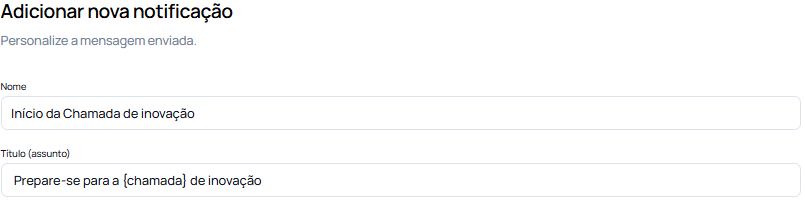
Step 2.1: Notification Name
- Enter a name that clearly identifies the notification.
- Name: Start of the Innovation CallThis name will be used internally for the organization, helping you quickly identify the purpose of the notification. In this example, this specific notification is intended to be a prior communication before the start of the call

Step 2.2: Notification Title
- Enter a title that will be displayed as the subject of the email. Choose a direct and relevant title.
- **Title: **Get ready for the {call} of innovation
The title will appear in the user’s inbox and should encourage opening the message, highlighting the importance of the action.
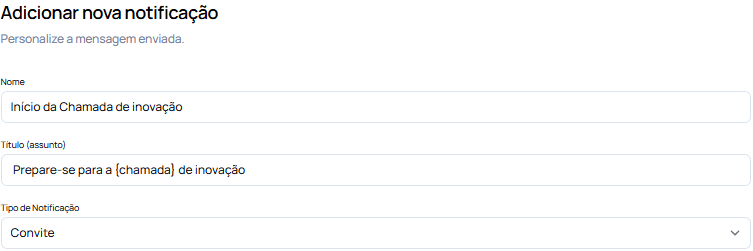
Step 2.3: Notification Type
- Select the type that corresponds to the notification event.
- Notification type: Invitation
Select the type of notification that best represents the purpose of the message. In this case, “Invitation” indicates that this notification will be sent before the innovation call begins.
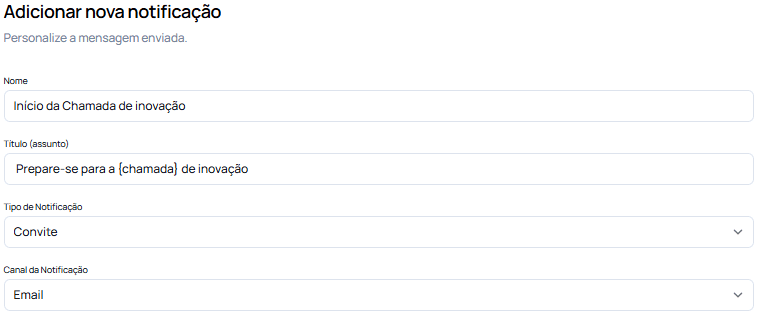
Step 2.4: Communication Channel
- Choose where the notification will be sent.
- **Notification Channel: **email
At the moment, the platform only offers email as a communication channel, while other channels are in development, such as Microsoft Teams.
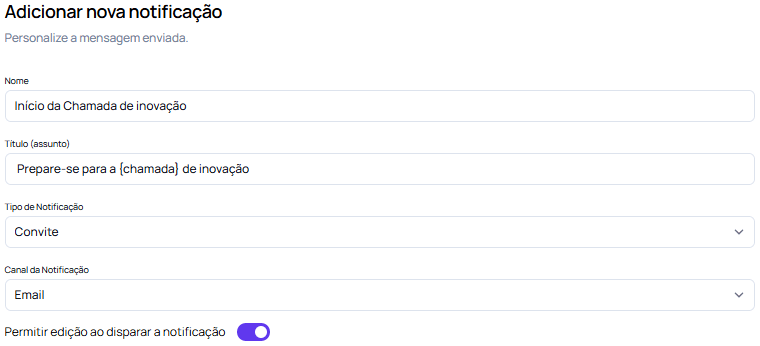
Step 2.5: Edit Permission when Sending the Email
- Check the Allow editing before shooting option to adjust the email content before sending it.
- Editing permission when triggering the notification: Active
Enable this option if you want the flexibility to modify the message before sending, entering specific details that may change closer to the sending deadline.
Step 2.6: Notification Body
- Design the body of the notification using dynamic variables to automatically personalize the message. This makes communication more direct and relevant.
- Notification Body:
`Olá, \{nome\}! A Chamada de Inovação está prestes a começar. Esta é sua oportunidade de participar e colaborar com ideias inovadoras. O período de inscrição inicia em breve, e gostaríamos que você estivesse preparado. Detalhes da chamada: - Data de Início: \{dataInicio\} - Data de Término: \{dataFim\} Fique atento(a) ao prazo e venha fazer parte dessa jornada de inovação! Atenciosamente, \{remetente\}`Use dynamic variable key for greater personalization of the message to be sent. In the example, {name}, {startdate}, {enddate} and {sender} were used to ensure that the content is personalized for a specific user directly and presents the user with the schedule defined for the call in question.
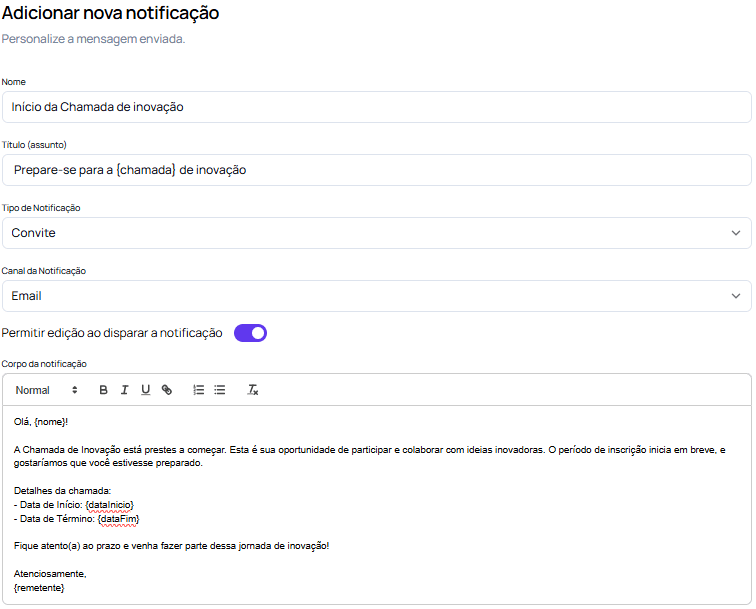
- Review all fields in the notification and preview the final message.
- Click Save and finish to confirm and activate the notification.
- View your created or edited notification in the Notification List.
Post Notification Configuration
After you complete setting up notifications, defined communications will be ready to be sent according to scheduled actions, such as invitation to join the call, subscription reminders, and completion confirmations. These notifications allow for effective and targeted communication with participants, keeping them informed about the call’s key milestones and making it easier to follow the steps in the process.
Notifications, once configured, are enabled to be triggered automatically, ensuring that interactions happen in an agile and structured manner throughout the proposal submission journey.Continue configuring the call by going through the next steps before publishing your innovation call.
We are excited to see the contributions and insights each participant will bring!