Application Form
The Application Form is a fundamental tool for collecting relevant information about the proposals presented on the innovation management platform. It was designed to guide both collaborators and evaluators through the process of submitting and evaluating innovative ideas. The form ensures that all necessary information is captured in a clear and concise manner, promoting an efficient and structured assessment. In this chapter, we will cover the various functionalities and configurations that allow you to create forms adapted to the specific needs of each innovation call.
Form structure
Registration of the form takes place through two sessions. Each session was designed to facilitate the creation process and help instruct the proposing agent when submitting the idea. The structure includes an introduction (step by step) section, which aims to present the concept of the form and its purpose to applicants, providing a clear view of what is necessary for a successful application, and a section called form, which holds the questions prepared for the call to which the user will respond by submitting the idea.
Introduction (Step by step)
The Introduction serves as an initial guide for users, presenting a header with a title and a description that guides the form to come. This pre-form page is essential for preparing users by clarifying the purpose of the form and highlighting the importance of the information to be provided. The goal is to ensure that everyone feels comfortable and informed before proceeding with the filling.
 In the “Information about the stages” section, it is possible to describe how each stage will work or be used as an evaluation criterion.
Form
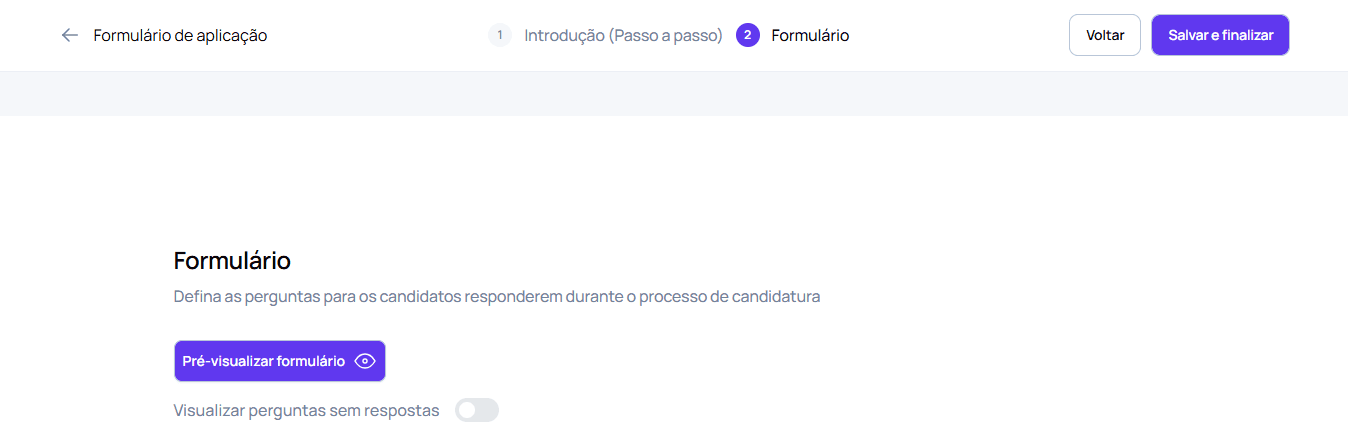
The Form section defines the creation of the fields and sections necessary for the innovation call. This part allows you to customize questions according to the program’s objectives, offering a preview button so users can see how the form will look before it is published. Preview is a valuable tool that enables adjustments and refinements, ensuring that all information is aligned with evaluators’ expectations and meets the needs of the innovation process.
Questions on the form
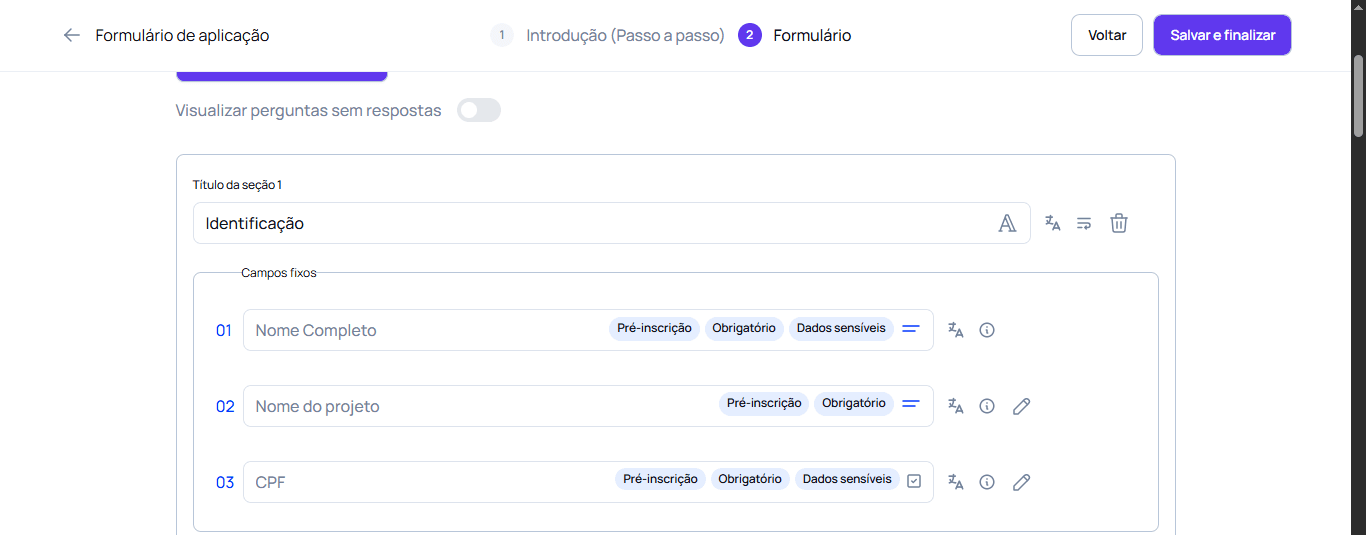
In order for the objectives of the application form to be achieved, the platform has several types of questions, such as multiple choice (single answer or more than one answer), essays (short or long answer), among others. This makes it possible to diversify questions and, consequently, information, which increases the possibility of data analysis. To add a question, you must inform the type of field that will be used, configure the field by informing the necessary properties, such as mandatory question or sensitive data, and finally, **use the field. **For better organization and management of this data, it is possible to create **sections **to group information of the same nature or purpose. It is also possible to create conditional sections that, depending on the answer to a given question, guide the direction of the next questions and sections.
Type of fields
Below, we present the main types of fields that can be used, along with practical examples that illustrate how each of them can be applied to the application form.| Field Type | Description | Example | | --- | --- | --- | | Number | Allows the user to enter only numeric values, ideal for information such as quantity, values or any data that needs to be numeric. | How many employees work in your company? | | Email | Field for entering a valid email address, ensuring that users provide a contact email. | Enter your main contact email. | | Telephone | Allows the user to enter a validated phone number, which can include codes in the format (XX) XXXX-XXXX. | Enter your telephone number with area code. | | Short Answer | An open text field for short answers, suitable for questions that require objective information. | What is your company name? | | Long Answer | Offers a larger text field, allowing for more elaborate responses. Ideal for detailed descriptions of ideas, justifications and action plans. | Describe the problem your solution aims to solve. | | Única Escolha (Radio) | Allows the user to select just one among several predefined options. Ideal for questions where an exclusive choice is required. | What is the current stage of your company? 🔘 Ideation 🔘 Operational 🔘 Scaling Here the user views all the options listed and chooses a single option. | | Single Choice (Select) | Similar to the “Single Choice (Radio)” field, but presented in a dropdown menu, saving space on the interface and making it easier to choose from long lists. Suitable when there is an extensive list of options, making it easier to see. | 🔽 Which sector does your company serve? - Technology - Health - Education Presented in a drop-down menu format, allowing you to choose a single option. | | Multiple Choice | Allows the user to select more than one option among several alternatives. Suitable for questions involving multiple categories, and for questions where multiple options can be applied. | What technologies does your solution use? ✅ Artificial Intelligence ⬜ Blockchain ✅ IoT ⬜ Big Data The user can select multiple answers. | | Upload File | Field that allows you to send files in different formats (PDF, DOC, images, etc.). Useful for submission of presentation, technical document or reports. | 📤 Attach your project presentation (PDF format). | | URL | Allows the user to insert a URL link, facilitating the submission of external websites that complement the proposal or idea. | 🔗 Insert the link to your company website. | | Video URL | Field to insert video links, such as those hosted on YouTube or Vimeo, ideal for sending video pitches or product demonstrations. | 🎥 Insert the link to the video presentation of your proposal (YouTube or Vimeo). | | Document | Allows the submission of specific files/documents required by the innovation call, such as business plans, contracts or documents with personal information. | Send the signed confidentiality agreement (PDF or DOC format). | | CNPJ | Specific field to enter the National Register of Legal Entities number, required for companies. | Enter your company’s CNPJ | | CNPJ or CPF | Allows the user to enter both the CNPJ (for companies) and the CPF (for individuals), offering flexibility depending on the type of participant. | Enter your company’s CNPJ or your CPF, if you are an individual. | | Date | Field for inserting a specific date, useful for information such as deadlines or project start dates. | Enter the start date of your project. | | Address | Structured field to capture the existing address, completing the information based on entering the street, number, city or zip code. | Enter the address of your company’s headquarters. | | Start Application | Redirect field that allows the user to respond to another innovation call form. The answer entered in this field will guide you to another application form, which was previously created in another call. | Want to contribute an idea to another open call? ✅ Yes ⬜ No When answering yes the user is redirected to another form. | | Themes and Challenges | Structured field to list or select the themes and challenges that the innovation call addresses, allowing candidates to choose or identify which theme their proposal aligns with. The themes and challenges uploaded here were previously registered in the previous call configuration topic called “register call”. | Select the topic of your proposal. ⬜ Sustainability ⬜ Energy Efficiency ⬜ Urban Mobility Field where the participant chooses the theme of the innovation proposal, helping to classify the application. | | Regulation | This field searches for the call regulations, displays a link for the user to download the document and adds a checkbox field requesting the user’s acceptance. | ☑️ By proceeding, you confirm that you have read and agree to the terms of the innovation call regulations. Download Regulation |## Field configuration
Before applying a field to the form, you can customize it through some essential settings. These options ensure that the form meets the specific needs of the innovation call and helps streamline information collection. Available configurations include:
- Display this question on the pre-registration page: This option allows the question to be shown to users on the landing page during the pre-registration process. If checked, the question will be visible on the landing page, facilitating the initial collection of information that directs the user to the complete form.
- Mandatory Answer: When activating this setting, the question becomes mandatory to complete. This means that participants will not be able to submit the form without answering this question, ensuring that essential information is always collected. When checking this option, the question defined as mandatory will be marked with an asterisk (*).
- Define as single field: This setting restricts responses as a single option, preventing data from being repeated in a subsequent form submission. This functionality is especially useful for ensuring that a given piece of data is only filled in once.
- Display on dashboard: When this option is activated, the answer to the question will be displayed on the “strategy” panel in the platform’s funnel workspace, allowing managers to have quick and easy access to the most relevant information during the analysis of proposals.
- Sensitive data: If this option is active, if the user requests the deletion of their account, the data will be automatically anonymized
Use Field
After defining and using a field on the form, you can perform a series of actions that allow you to adjust and improve information collection. These features ensure that the form continues to meet the needs of the innovation program. Available actions include:- Insert Translation: This option allows you to add translations to the field in different languages, facilitating the participation of a diverse audience. This is especially useful in innovation calls that seek engagement in multilingual contexts.
- Supporting Text: You can include supporting text below the field, which may provide additional guidance or clarify what is expected from the response. This information can help participants better understand how to complete the question.
- Move Question: With this functionality, the user can rearrange the order of questions on the form, moving a question. This is useful for prioritizing important issues or adjusting the logical sequence of the form.
- Move Field Between Sections: This action makes it possible to transfer a question from one section to another, allowing the form to be more dynamic and the questions to be grouped more appropriately.
- Edit Field: After the initial definition, it is possible to change the field type (for example, from short answer to multiple choice) and adjust its settings. This flexibility ensures that the form adapts to changing data collection needs.
- Delete Field: If a question becomes unnecessary or irrelevant, the user has the option to delete the form field. This action helps keep the form lean and focused, avoiding confusion among participants.
Sections
To facilitate information collection and ensure better organization of the form, it is possible to use sections to group fields (questions) according to specific categories. This grouping not only improves the user experience, but also allows for more efficient analysis of the information collected.
- Section Description: Allows you to add an informative header that clarifies the purpose of the section before the questions. This description helps employees understand what is expected of them, highlighting important criteria or specific guidelines.
Conditioned Sections
Conditional sections are a powerful feature on the platform that allows you to customize the user experience when filling out the form in a single choice field. Based on the answers given to specific questions, you can direct participants to relevant sections, ensuring that only the necessary information is collected.
For example, if a collaborator responds that their proposal involves a technological innovation, the platform can display an additional section with specific technology-related questions, while other sections can be hidden. This approach not only makes the filling process more streamlined and intuitive, but it also helps prevent participants from encountering questions that don’t apply to your proposal.Conditioned sections contribute to more focused and relevant data collection, improving the quality of the information obtained. Additionally, by adapting the form based on user responses, the platform provides a personalized experience that can increase participant engagement and satisfaction.
By implementing conditioned sections, it is possible to ensure that questions are relevant and that employees feel motivated to share their ideas more completely and effectively.
Call Form Configuration Guide
This guide walks you step by step through creating and customizing the form for a call on the platform. Below are examples of questions divided into sections to assist in structuring the innovation form, ensuring that all necessary information is collected.
Step 1: Access Form Registration
- On the platform, when editing the call, go to Register application form > Register form
- Click on **Start from scratch **to start registering a form.

Step 2: Form Introduction
Before setting up the form itself, you must create an introduction page that presents the form’s context and key information to participants. This introduction offers a brief summary of the purpose of the form and guidance for completing it, and may include the call steps, if necessary.
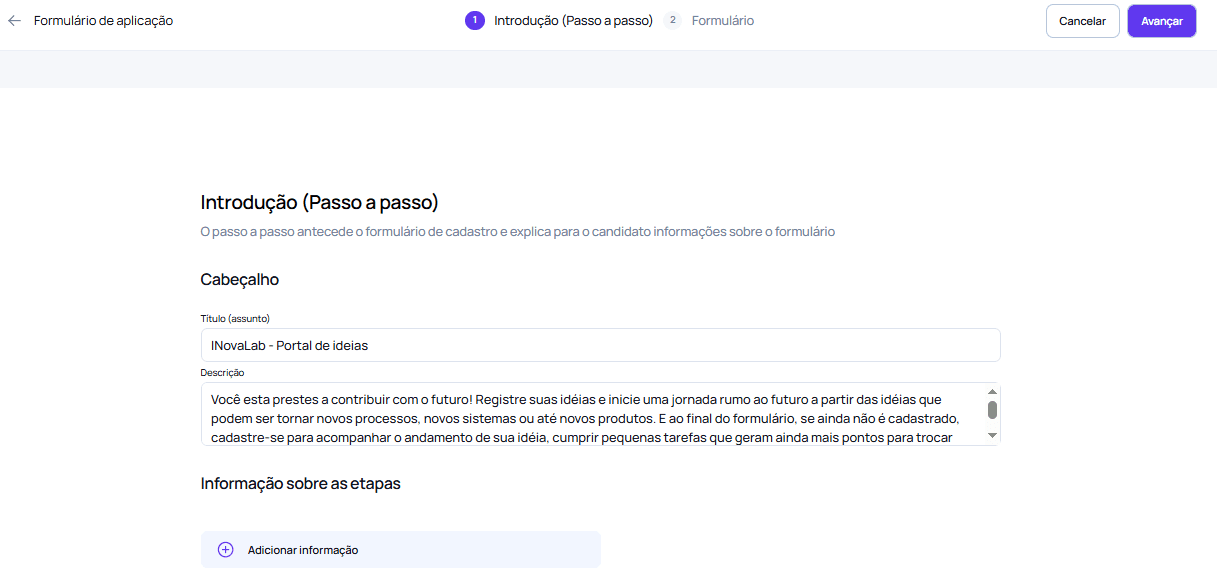
On the introduction page, configure:
Step 2.1: Form Introduction Title
- Enter a clear title that identifies the purpose of the form.
- Form Title: “Proposal Form for Efficient Logistics”
Step 2.2: Form Introduction Description
- Provide a brief description that explains the purpose of the form and the type of information expected.
Form Description: “This form was developed to collect innovation proposals that contribute to logistics optimization, addressing challenges and solutions to improve operational efficiency.”
Step 2.3: Information about the steps
- If necessary, list the steps of the call so participants know where they are in the process and what to expect in the next phases.
Call Steps (if applicable): “Step 1: Submission of Proposals (06/01/2025 to 08/01/2025) | Step 2: Evaluation and Selection | Step 3: Announcement of Selected Candidates (12/15/2025)”
- Review the information and click **Next **to proceed to the next configuration.
Step 3: Form
In this session, the form questions will be configured. The creation of the form itself has an intuitive structure for creating sessions and adding questions with specific fields within each section created, following the following step by step
-
Adding session with section title
-
Addition of fields (questions) and options according to need
 Below, we list examples of fixed and other recommended sections for the form, but it is important to highlight that these sections can be adapted according to the specific needs of each call.
Step 3.1: Fixed Questions (fixed)
The form includes mandatory questions that guarantee consistency of information and facilitate the process of evaluating and monitoring proposals.
-
Full Name
- Mandatory fixed field where the participant must provide their full name. Example answer: João Silva
-
Project Name
- Mandatory fixed field where the participant enters the name of the innovative proposal. Example answer: “Logistics Optimization with AI”
-
**CNPJ or CPF **
- Mandatory fixed field to identify the participant’s CNPJ or CPF. Sample response: 123.456.789-00
These fixed questions are essential for managing and identifying proposals, ensuring standardization and quality of data collected within the platform.
Step 3.2: Employee Information (Optional)
In this recommended section, participants can fill in information about their relationship with the company. In brackets we give an example of a type of field appropriate to the question.
-
Department [ single choice - select ]
- Select the department the participant belongs to. Sample answer: “Logistics”
-
Current Position [short answer]
- Enter the participant’s current position in the company. Example answer: “Logistics Analyst”
-
** Company Time** [short answer]
- Specify the time the participant has worked at the company. Sample answer: “2 years”
-
**Email **[email]
- Contact fields, ensuring that the participant can be located throughout the process. Example response: “name@email.com”
Step 3.3: Information about the Proposal (Optional)
Here, participants describe the proposal and its main aspects.
-
** Project Name**[ short answer ]
- Enter the name or title of the innovative proposal. Sample answer: “Intelligent Inventory Control System”
-
**Project Summary **[long answer]
- Briefly describe the idea and what it aims to achieve. Example answer: “Proposal for an AI system for inventory control and optimization.”
-
**Proposal Theme and Challenge **[ themes and challenges ]
- Specify the topic and challenge that the proposal aims to solve. Example answer: “Inventory and Storage Management – Waste Reduction”
-
**Proposed Solution **[long answer]
- Detail the solution and how it will solve the identified problem. Sample answer: “An intelligent system that predicts demand to reduce excess inventory.”
Step 3.4: Impact and Strategic Alignment (Optional)
This section focuses on the expected impact and alignment of the proposal with the company.- **Expected Impact **[long answer]
-
Describe the impact of the proposal, considering factors such as efficiency and cost savings. Example answer: “The proposal aims to reduce transport time by 20%.”
-
**Alignment with Company Objectives **[long answer]
- Explain how the proposal aligns with the company’s strategic objectives. Example answer: “Our solution supports the goal of reducing logistics costs by 15%.”
-
**Success Metrics **[long answer]
- Specify the metrics to measure the success of the proposal. Example answer: “Reduced waste by 25% and increased productivity by 15%.”
Step 3.5: Terms and Conditions (Optional)
In this last section, ensure that the participant understands and accepts the terms of the call.
- **Confirmation of Reading Data Policies **[ single choice - select ] Confirm that the participant has read and understands the company’s data policies.
- **Confirmation of Veracity of Information Provided **[ single choice - select ] The participant confirms that all information provided is true and accurate.
- **Acceptance of Program Terms and Conditions **[ single choice - select ] The participant must accept the terms and conditions established by the program to proceed with the registration.
- Finishing the Form, review all questions and adjustments necessary to complete the form. Click Save and Finish to activate the form in the call, ensuring that all information is configured as expected.
How to define the questions on the form?
To define the questions for an application form on an innovation call platform, it is important to ensure that the questions capture all relevant information about the applicants and their proposals. Questions should be designed to capture a comprehensive view of the proposer, the innovative proposal, and alignment with program objectives. They should help ensure that evaluators have all the information they need to make a detailed and informed analysis. In this sense, the definition of the questions in the application form must ensure that the contribution proposed by the employee is captured clearly and, at the same time, succinctly.
Post-Registration Form
After completing the registration of the application form, it is important to review all settings and ensure that everything is as desired. Below are some guidelines and steps to follow:
Publishing and viewing the Form The form will only be available for viewing after the call has been published. To preview the form in the case of testing or UX, use the Preview form option present when editing the form registration.Visualization of ideas Once the call has been published and idea submission applications have been received, the proposals will be available in the selection funnel, showing the user who applied, when it was applied and the individual responses for each field defined in the form. In cases where the user started filling out the form, but did not finish sending it, their activity will be registered in the funnel within the prospecting area in the onboarding tab, and it will be possible to configure a warning notification for that user to continue with the application.
Form Editing After publishing the call, the form will be available for submitting applications. Once you apply an idea and submit it via the form, editing the form will be unavailable. This action aims to maintain complete standardization from the beginning of the innovation call to the end. Therefore, it is essential to review the form before publishing an idea. If it is necessary to edit the form, it is necessary to delete all applications in the selection funnel and onboard, this case is used for testing and validation before the call starts.
Ways to access the Form After publishing the call, access to the form can occur in two ways depending on the type of innovation call registered. These accesses correspond to access via the landing page, the pre-registration form and the ideas feed in the collaboration workspace. There may be an access form for idea portal calls (intrapreneurship) and an access form for open innovation calls.
By following these steps, you will ensure that the application form becomes an effective tool in collecting innovation proposals, contributing to the success of the call and facilitating the management of the process.
Continue configuring the call by going through the next steps before publishing your innovation call.
We look forward to hearing the ideas and perspectives each participant will share!