My First Call
Before starting to configure a campaign, it is important that you have consulted the First Steps material, ensuring a prior understanding of the structure and fundamental concepts of the platform.
To create a new campaign, the Administrator must access the Campaigns section and select the New Campaign button. When clicking on this option, the platform will open a modal with the fields necessary for the initial configuration of the call, such as name, description, start and end dates, campaign managers, among other basic information.
Campaign Information
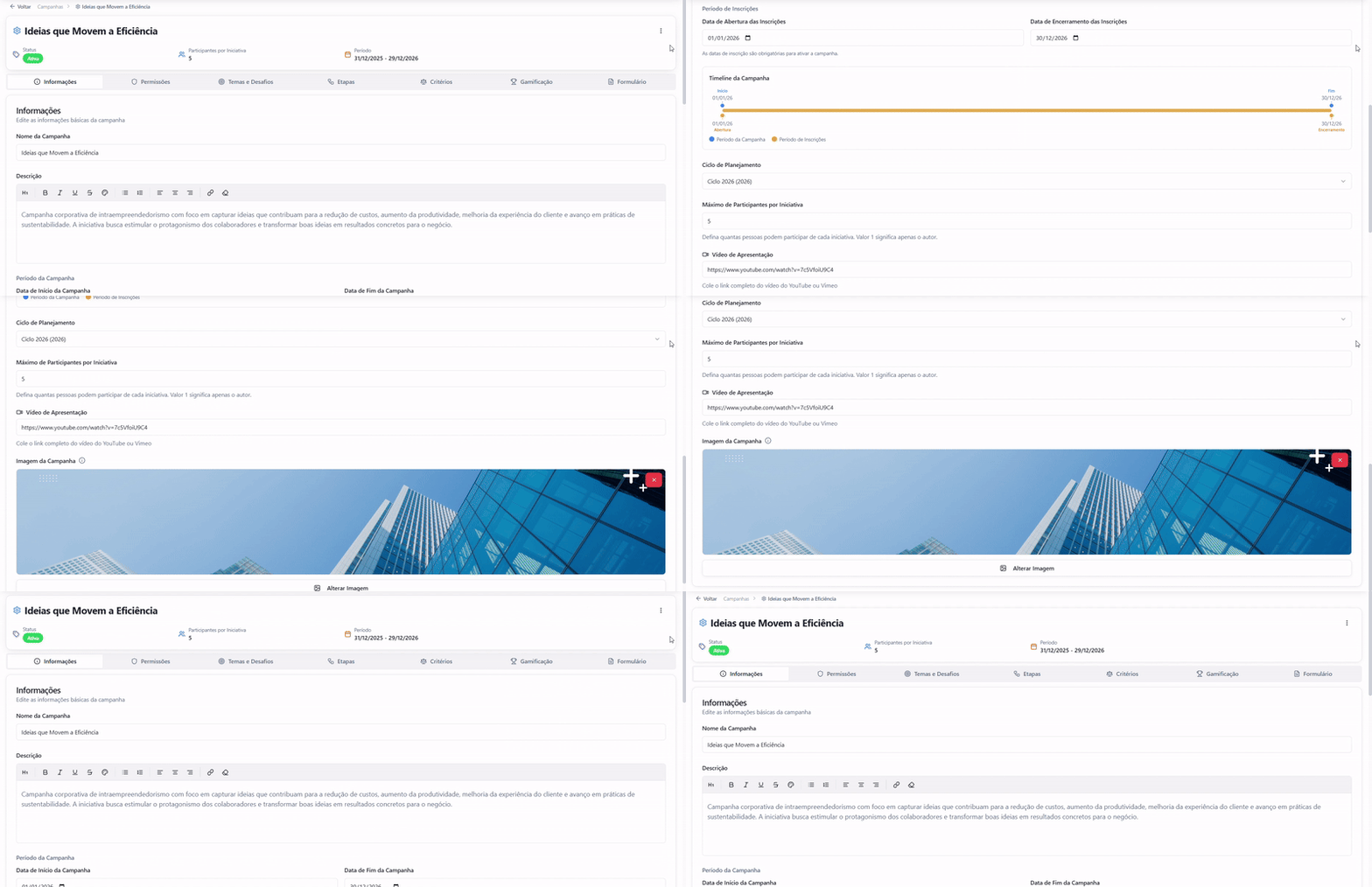
After creating the campaign, the user will automatically be redirected to the first configuration step, the Information section. In this section, the Administrator will be able to adjust and define the main campaign parameters in more detail, including:
- the name of the campaign;
- the description;
- the start and end dates, which can be followed in the campaign timeline;
- the Planning Cycle to which the campaign will be linked;
- the maximum number of participants per initiative, defining the limit of members that users can inform at the time of application, whether through the standard form or a personalized form;
- the definition of the video and banner of the campaign, reinforcing the communication and visual identity of the call.
Campaign Permissions
In this section, the user can configure how the campaign will be viewed and accessed, defining one of the three types of visibility available:
Public: the campaign is available to internal and external users, allowing the viewing and submission of ideas by both logged-in participants and external users.
Internal users only: the campaign is exclusively accessible to users authenticated on the platform, not allowing external users to view or participate.
Restricted users: the campaign is only available to specific users, who must be selected manually, limiting participation to the defined audience.
Below, in the Campaign Managers section, the Administrator can define who will be the managers responsible for the campaign. These users will have permission to configure, manage, and edit campaign information throughout its run. There is no maximum limit to the number of managers that can be assigned to a campaign.
Finally, in the Evaluators section, the platform allows the registration of users who will participate in the initiative evaluation process. At this stage, it is possible to configure specific permissions for each evaluator, defining:
- whether the evaluator will be able to view and evaluate all stages of the funnel or only specific stages;
- whether you will be allowed to move initiatives between funnel stages;
- which challenges the evaluator will be able to assess, when applicable;
- you can edit the evaluation form, when necessary.
Themes and Challenges
 In this section, the platform allows the user to register the Themes and Challenges that will be part of the campaign.
Themes and challenges can be configured in two ways:
Aligned with the campaign theme, directing submissions to specific previously defined challenges;
Free, allowing any idea to be submitted, without the obligation to be linked to a specific challenge.
This configuration will be used when submitting the idea. When applying, the user will be able to select which theme or challenge best relates to their idea, facilitating the organization, analysis and subsequent evaluation of initiatives within the campaign.
Selection Steps
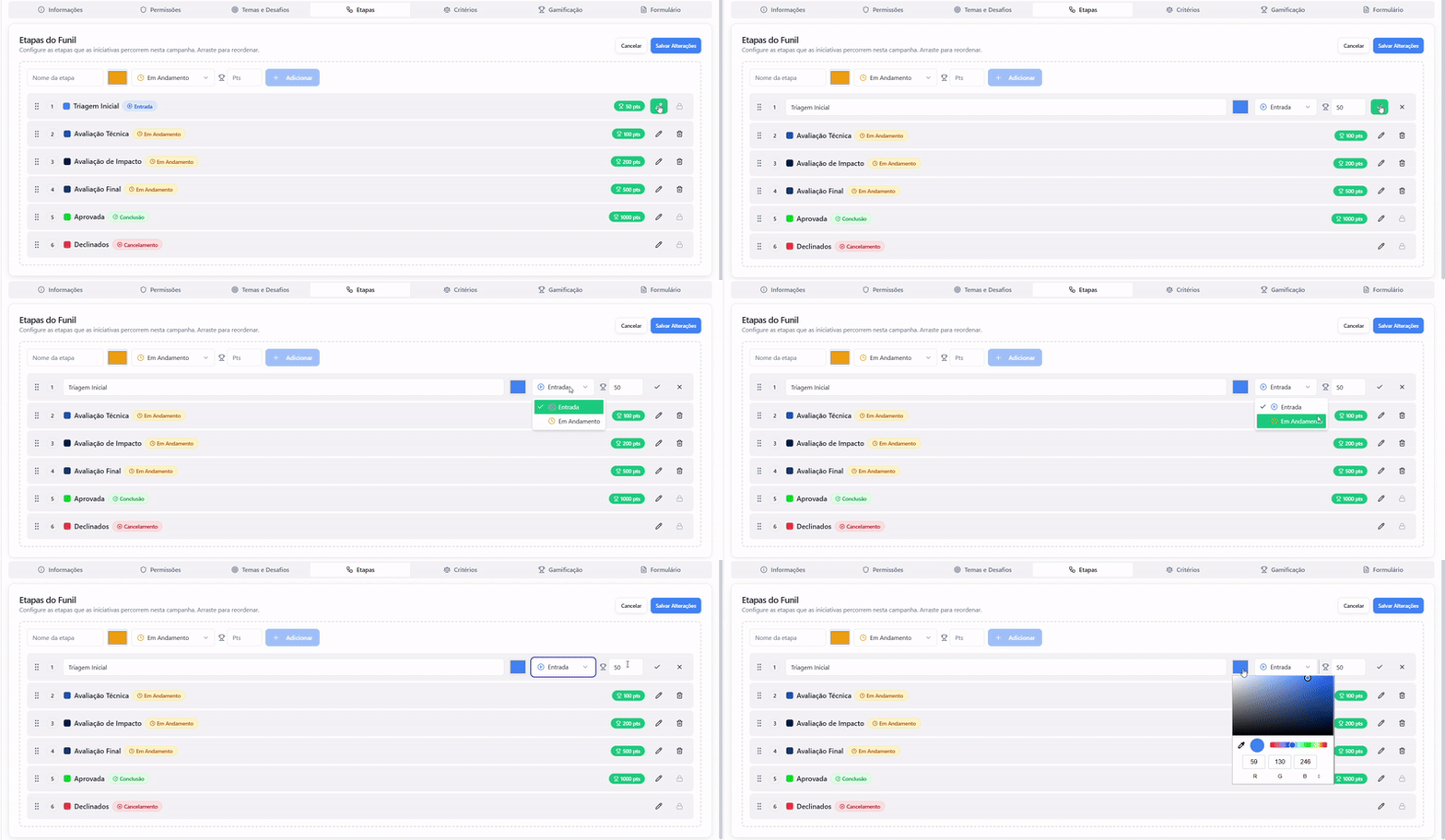
In this section, the platform allows the user to add, edit and remove selection steps from a campaign. These steps make up the selection funnel, in which Administrators, Managers and Evaluators will be able to access and view the initiatives according to their position in the process.
The main objective of this section is to allow complete configuration of the selection funnel, defining how initiatives evolve throughout the campaign. There, the user will be able to:
-
Define the number of steps that the selection funnel will have;
-
Configure the status of each step, which can be:
- Entrance
- In progress
- Completed
- Declined
-
Define the name and color of each stage, facilitating visual identification in the funnel;
-
If gamification is activated, define the number of points that each stage will attribute to initiatives as they progress through the funnel.
This configuration ensures greater control, transparency and standardization of the evaluation process and evolution of initiatives within the campaign.
Assessment Criteria
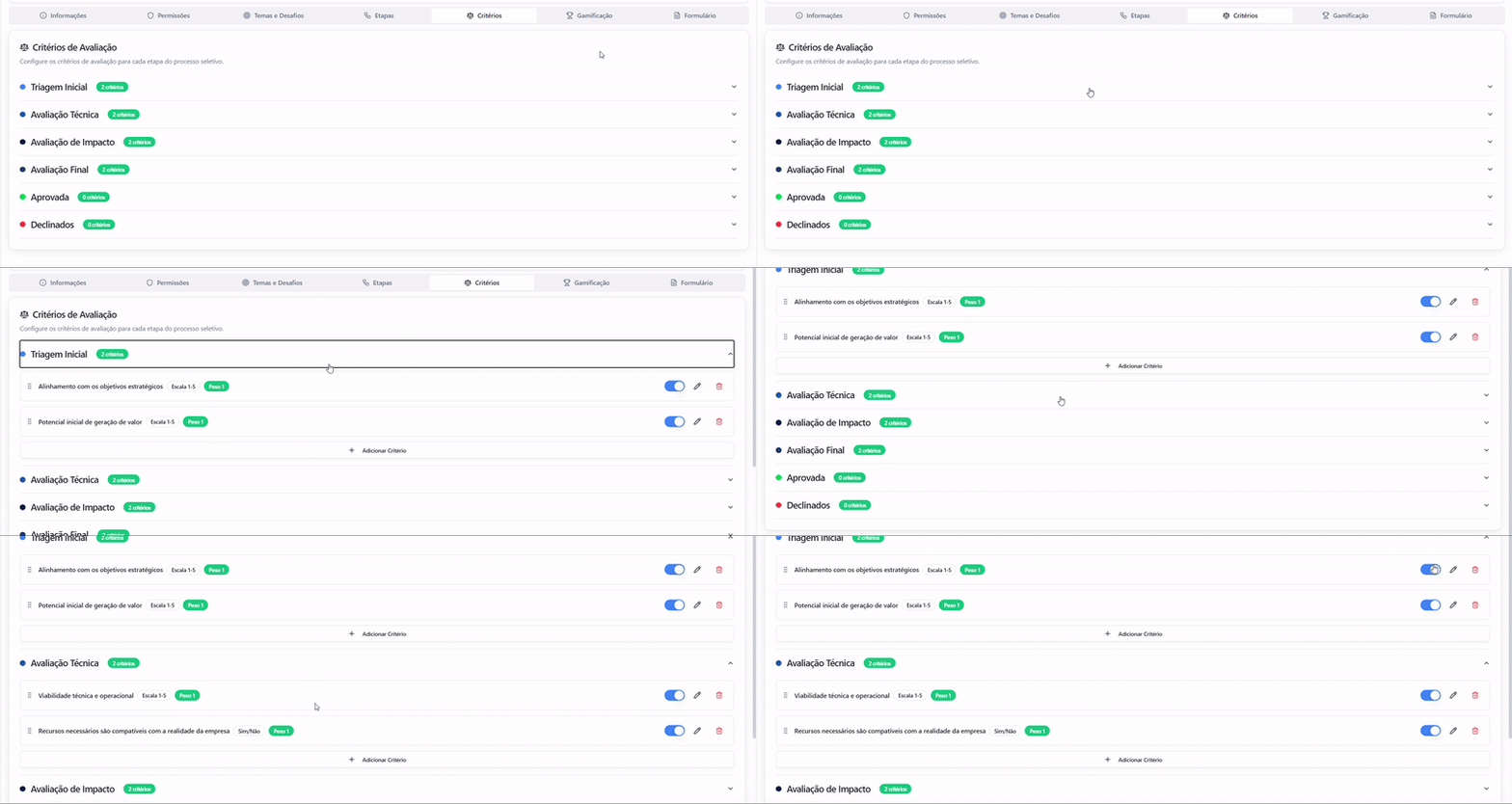
In this section, the platform allows the user to register the evaluation criteria for each stage of the funnel, enabling evaluators to analyze initiatives based on previously defined parameters.
The main objective of this section is to standardize and guide the evaluation process, ensuring greater consistency, transparency and alignment with the campaign objectives.
In this section, the user can:
-
Define the criterion name associated with each stage of the funnel;
-
Insert a detailed description, explaining what the criteria seeks to evaluate;
-
Define the type of criteria, which could be:
- Ranking: allows you to assign a grade on a defined scale;
- Boolean: allows “Yes” or “No” evaluations;
-
Define the weight of the criterion, establishing its relevance in calculating the final assessment grade;
-
Activate or deactivate evaluation criteria according to the campaign’s needs.
This configuration allows each stage of the funnel to have specific criteria, making the evaluation process more fair, structured and aligned with the strategic objectives of the initiative.
Gamification
In this section, the platform allows the user to register the main tasks and actions that will generate scores for campaign participants, if gamification is active.The objective of this area is to stimulate user engagement, rewarding strategic actions throughout the campaign cycle through a points system.
In this section, the user can:
- Define the score assigned to each type of action, such as:
- Submission of initiatives;
- Movement of initiatives between funnel stages;
- Likes;
- Comments;
- Adjust point values according to the relevance of each action for the campaign;
- Monitor the Score Extract, which allows you to view and manage the general score of users participating in the campaign;
- Check, in detail, which users gained or lost points, as well as the specific action that led to this movement.
This functionality guarantees greater control over the dynamics of gamification, promoting transparency, engagement and alignment between user behavior and campaign objectives.
Initiatives Form
In this last step of creating and configuring a campaign, the platform allows the user to create and configure the initiative application form.
The form is the main point of contact between the collaborator and the campaign, being responsible for collecting the information necessary to submit ideas. In this section, the user can define the quantity, types of fields and organization of the form’s sections, configuring it according to the campaign’s objectives.
The platform offers two types of form, the choice of which depends on the strategy and level of detail desired:
-
Standard Form:
- When creating a new campaign, the platform automatically assigns a standard form, made up of simpler fields, such as:
- Name of the idea;
- Description of the idea;
- Number of participants (displayed only when the maximum number of campaign participants is greater than 1).
This model is recommended for campaigns that do not have a structured script, and is ideal for quick submission of initiatives.
- **Customized Form: **
- In this model, the platform allows the user to configure the form from scratch, creating fields and sections fully aligned with the campaign’s expectations, objectives and criteria. This option is recommended for campaigns that require greater detail, specific validations or collection of strategic information.
- During the configuration of the personalized form, the platform provides the preview functionality, allowing the user to follow, in real time, how the form is being structured. This facilitates the validation of the fields, the alignment of information and the experience that the employee will have when submitting their idea.
Campaign Regulations
The Campaign Regulations is the section responsible for establishing the formal guidelines that guide users’ participation in a call. It defines, in a clear and structured way, the rules, criteria, responsibilities and conditions that must be observed by all participants when submitting their initiatives.Its main objective is to ensure transparency and alignment between the organization and participants, ensuring that everyone understands the purpose of the campaign, participation requirements, deadlines, evaluation criteria, confidentiality rules (when applicable) and any conditions related to intellectual property or prizes.
On the platform, the administrator can write the regulation directly in the available field or copy and paste a previously structured text. Before publishing, it is possible to use the preview option to check how the content will be displayed to users, ensuring clarity and coherence in communication.
By accepting to participate in the campaign, the user declares awareness and agreement with the regulations, formalizing their adherence to the established conditions. In this way, the regulation acts as a governance instrument, strengthening the credibility of the program and promoting an organized and safe experience for everyone involved.
Automations
The Automation Center works as a rules engine that can be configured per campaign. The central logic is simple: an event happens on the platform (e.g. an initiative is registered), the system checks whether the defined conditions are met (e.g. category = Innovation) and, if so, executes an action automatically (e.g. add the manager as an evaluator).
The objective is to eliminate repetitive and mechanical tasks, giving more consistency and scale to the initiative evaluation process without relying on manual intervention.
Every execution is recorded in history, and it is possible to reprocess rules manually if necessary.
Advanced Settings
The Advanced Settings section brings together optional features that complement the standard behavior of a campaign. Each option is activated or deactivated individually by a toggle. The three available are:
Display initiatives on the collaboration wall: when activated, the initiatives submitted in this campaign appear in the general feed of the Hub wall, being visible to other users of the platform. Useful for open campaigns that want to stimulate collective engagement. If it is disabled, the Ideas Feed will not be visible to users, allowing the user to only view and access their submitted initiatives.
Author self-evaluation: when activated, it allows the author himself to evaluate his initiative at the time of submission, using the criteria configured in the “start” stage of the funnel.
**Allow sending initiatives by email: **When activated, the campaign gains a dedicated email address to receive initiatives without the author needing to access the platform directly. The configured address is displayed just below the toggle.
In short, this section allows the manager to adjust entry channels and campaign visibility according to the strategy of each innovation initiative.
Support Materials
To complement the explanation of the features and configurations presented above, Quiker provides some support materials that will help you make better use of the platform and conduct your innovation journey more safely.Below you will find the available support materials:
- **Registering a campaign: **https://app.storylane.io/share/us0ji1sg1l4q
- **Configuring Call Gamification: **https://app.storylane.io/share/os7aio67x1mw