Platform Functionality
The Quiker platform allows corporations and innovation hubs to manage end-to-end innovation programs, making investment in innovation tangible, structured and measurable. Here, innovation stops depending on the so-called “Eureka Moment” and starts to be driven by well-defined processes, engaged users and efficient management.
From defining innovation strategies, through creating campaigns and projects, to receiving applications from collaborators and the engaged community, Quiker offers the necessary tools to structure, monitor and evolve the entire innovation ecosystem.
The platform allows managers to manage this complete cycle, from idea to return on investment (ROI), ensuring visibility, control and concrete data to support strategic decisions and maximize the results of innovation initiatives.
Collaboration Wall
Let’s start learning about the platform’s features with Quiker’s main and most attractive feature: the Collaboration Wall.
The Collaboration Wall is the space where users can actively interact with each other, through submitting ideas, likes, comments, following initiatives and sharing ideas. Its main objective is to ensure that participants have access to the ideas published in each campaign and can collaborate, evolve and build relationships of mutual growth, promoting the continuous improvement of initiatives.
As a fundamental improvement to the user experience, Quiker now allows applications to be carried out at any time and from different points on the platform. Currently, the user has three ways to submit an initiative:
- Through the “New” button, located in the top right corner of the platform. When selecting it, the user can choose to create a new campaign, new initiative or new project.
Campaign and project creation options will be available exclusively to users with the Administrator or Manager profile.
- Through the “New Initiative” button, also located in the top right corner of the platform. When selecting it, a modal will open in which the user can choose which campaign they want to submit their idea to. If there is only one active campaign in the hub, it will be automatically selected. The specific form for the chosen campaign will then be displayed.
- Through the “Send Initiative” option, available within a campaign page. When selecting this option, the platform will directly open the application form corresponding to the campaign in question.
When accessing a campaign through the “View Details” option, the user will be able to view all relevant information, such as campaign name and description, selection funnel steps, start and end period for registrations, registered themes and challenges, responsible managers and gamification rules, including actions that generate scores.Still within the campaign, users with the profile of Administrator, Manager responsible for the campaign or Evaluator will have access to a quick access menu, which allows the following actions to be carried out:
- Access the campaign funnel
- Evaluate submitted initiatives
- Access the project section linked to the campaign
In addition to collaboration, Mural also promotes an environment of healthy competition. In it, participants can highlight their ideas, achieve better positions in the ranking and accumulate gamification points, which can be exchanged for prizes available in the rewards showcase. Actions such as likes, comments and movement of ideas between stages of the funnel contribute to the score, encouraging continuous engagement and active participation.
In the same Score Ranking section, the user will have access to two important views:
- My Profile: when selecting this option, the user will be redirected to the profile area, where they can view information such as name, email, unit (when applicable), team you are part of, current score, point history, badges earned and your latest submitted initiatives.
- View full statement: this option redirects the user to the “My Score” section, where it will be possible to view the current balance of points in the ranking and the detailed score statement, with all actions that resulted in a gain or loss of points. In this area, the user can apply filters and individually analyze each recorded action.
As a form of recognition, users can receive participation badges, which reflect their level of involvement and contribution within the platform, strengthening their status in the innovation ecosystem and valuing those who participate consistently.
Thinking about agility and organization, Quiker provides the Focus section, which offers employees a quick and centralized view of their main issues. Whenever accessing the platform, the user will be able to view tasks related to pending evaluations, necessary updates or project monitoring of which they are part, facilitating day-to-day management.
In the Idea Feed section, users will be able to view all ideas published on the Collaboration Wall, with the possibility of filtering them by campaign when selecting a specific campaign. This view makes it easier to monitor ongoing initiatives and allows the user to focus on topics or calls of greatest interest.
In addition to liking and commenting the ideas, users will be able to follow the initiatives they consider most relevant. The ideas followed will be available in the “Following” section, where it will be possible to follow updates, stage changes and interactions related to each initiative monitored.The user will also have access to the “My Ideas” section, in which they can view all the initiatives they have submitted, tracking their status, evolution in the funnel and interactions received. This area centralizes the monitoring of contributions, offering greater clarity and control over the progress of each idea within the platform.
Finally, Quiker provides the News section, a space dedicated to sharing relevant notices, events and announcements, both internal and external to the organization. All content published by administrators is available for users to consult, ensuring alignment, transparency and efficient dissemination of hub information.
Culture & People Dashboard
Here, the platform will allow the user to monitor data relating to user engagement and participation in Innovation Campaigns, being able to carry out complete analyzes and generate valuable reports.
In this section, the user will be able to view some engagement and participation indicators that can help create consistent and valuable reports, analyzes and strategic decision making along with operational monitoring and management. The indicators are:- Registered People: this indicator will visually present the number of users who are registered on the platform, providing the user with a more dynamic way of viewing this and allowing the management of registered users to occur
- Total Initiatives: This indicator presents the total number of initiatives registered on the platform, considering all applications carried out in all campaigns. This view allows the user to monitor the general level of engagement of campaigns, making it possible to analyze and manage their progress based on the volume of initiatives submitted.
- **Engagement Level: this indicator presents the level of engagement based on users’ active participation in campaigns. Through it, it is possible to monitor the increase or decrease in engagement between different planning cycles, allowing you to monitor, analyze and manage the level of employee participation over time.
- Initiatives per Person: this indicator presents the average number of initiatives submitted per user participating in the campaigns. It is important to highlight that it does not consider all users registered in the hub, but exclusively those who actually participated in the campaigns in the period analyzed. Using this data, it is possible to monitor and manage the level of individual engagement, identifying the degree of participation per user. This analysis allows you to recognize the most active collaborators, which can be monitored through the “General Ranking of Collaborators”, which graphically presents the general level of participation of each user in the campaigns available in the hub.
- **Projects: this indicator presents the number of projects linked to each campaign, allowing the user to monitor, objectively, the development of initiatives into projects. Through this visualization, it becomes possible to analyze the level of conversion of campaigns into structured projects, in addition to monitoring which campaigns are generating the highest volume of execution within the hub.
In addition to these indicators, the platform provides dynamic graphs that automatically update your information according to the selected campaign. When applying the campaign filter, the data now exclusively reflects information related to that specific call.
This feature allows for individualized monitoring, providing more accurate and consistent management of the performance and progress of each campaign within the hub.
The first graph presented in the Cultures and People section is the Campaign Performance dashboard.
This dashboard consolidates all campaigns linked to a given strategic cycle, displaying, for each of them:
- Campaign name
- Number of initiatives submitted
- Number of projects generated
- Structure of the selection funnel, represented by colored stages, along with the volume of ideas present in each stageWhen selecting a specific campaign, the other graphs in the section now reflect exclusively the individual data of that campaign, allowing a more detailed and targeted analysis of its performance.
The Initiative Volume chart visually presents the number of initiatives submitted within a given period. When selecting a campaign in the Campaign Performance dashboard, the graph starts to display the volume of initiatives registered per month or week, allowing you to monitor the evolution of engagement over time. This visualization makes it possible to analyze the rate of user participation and monitor the progress of the campaign within the selected period.
Below, the Initiatives by Area graph shows the distribution of initiatives submitted by area registered on the platform. This indicator allows you to identify which areas have the highest level of engagement and how they are contributing to campaigns, offering a clear view of organizational participation.
Finally, the Employee Ranking graphically presents the number of applications carried out by each user. This ranking can be viewed in two ways:
- General Ranking, considering all hub campaigns;
- Ranking by Campaign, when selecting a specific campaign in the Campaign Performance section.
When applying the filter by campaign, the graph now displays only users who actively participated in that call. It is important to highlight that the general ranking and the specific ranking of each campaign may differ, both in position and in the users listed, as they consider different scopes of participation.
Planning
The Planning section was structured to support the operational and innovation processes of organizations that use Quiker. Here, users can register, link and monitor their strategic OKRs (Objectives and Key Results), ensuring alignment between strategy and execution.
Before registering a new OKR, there must be a Planning Cycle previously created and active, as every OKR must be linked to a specific strategic cycle. For more information on how to set up a Planning Cycle, visit the First Steps page.
To create a new OKR, the user must select the “New OKR” button. When performing this action, the platform will display a modal in which it will be possible:
- Set the OKR title
- Select the strategic cycle to which it will be linked
- Insert a description detailing what the objective seeks to measure and achieve
After registering the objective, the platform allows you to add the corresponding Key Results, enabling the definition of the metrics that must be achieved within a certain period. In this way, the user transforms strategic guidelines into measurable goals, facilitating monitoring and data-based decision making.The main objective of registering OKRs is to enable them to be linked to projects created on the platform, ensuring alignment between execution and strategy. By associating projects with an OKR, users can track the development of initiatives based on previously defined goals and key results.
Whenever there are updates to the linked projects, it will be possible to manually update the progress percentage of the respective OKR. In this way, the Planning section begins to reflect, in a consolidated manner, the strategic advancement of the organization, allowing for continuous, results-oriented monitoring.
The Planning section also allows, during the registration of Key Results, the user to define the monitoring indicators that will be used to measure strategic performance.
These indicators help in the categorization and monitoring of linked projects, ensuring that each initiative is monitored based on clear, previously established metrics. In this way, the analysis stops being subjective and becomes data-driven, strengthening the strategic management of the innovation portfolio.
To find out how to register a strategic Indicator, access the page First Steps
Dashboard Strategic Goals
The dashboards in the Strategic Goals section allow the user to monitor registered OKRs and the performance of projects linked to the platform. This area consolidates financial and strategic indicators, offering an analytical view of the performance of the innovation portfolio.
In this section, the user will be able to view the following indicators:
- Executed Budget
This indicator allows you to monitor project budgets, both generally and individually. The visualization presents a comparison between the forecast budget (planned amount for investment) and the realized budget (amount actually invested). When selecting an OKR linked to a project, the platform automatically applies the corresponding filter, allowing you to analyze how much the investment in that project impacts the consolidated budget. - Recovered Earnings
This indicator presents the financial gains already obtained by the projects, following the same general or individual visualization logic. It allows you to evaluate the financial return generated to date, enabling comparative analyzes between projects or within a given OKR. - ROI (Return on Investment)
The ROI indicator demonstrates the return generated by projects based on the relationship between earnings and investment. The view can be general (complete portfolio) or individual (per selected project). This indicator is essential to identify which projects present greater financial efficiency and to support strategic decisions, such as continuity, prioritization or discontinuity of initiatives.
The calculation is carried out using the following formula: ROI = Earnings ÷ Forecasted Budget- Total Projects
This indicator presents the number of projects linked to OKRs, allowing you to monitor the volume of strategic execution. From there, the user can individually analyze the progress of each project and understand how the portfolio is distributed in relation to the established goals.
In the Strategic OKRs section, all OKRs registered on the platform are available. In this area, users can view the level of progress of each objective, tracking its percentage of evolution based on the updates made.
Furthermore, the section presents the number of projects linked to each OKR, allowing a clear view of the relationship between strategy and execution. This way, it becomes possible to understand which objectives are being worked on the most and how the project portfolio is distributed in relation to the defined strategic goals.
In the Project Portfolio section, the platform presents all projects linked to each OKR, allowing users to visualize which initiatives are being monitored within each strategic objective.
This vision makes it possible to understand, in a structured way, how projects contribute to achieving the defined goals.
Within this section, the platform displays estimated and monitored indicators for each project:
- Project Status
Indicates the current status of the project, based on recorded updates. The status can be classified as: not started, in progress, completed, delayed or cancelled, allowing a quick read of the operational stage. - Project Category
Displays the category assigned to the project at the time of its creation, facilitating comparative analysis and strategic filters by type of initiative. - Progress Level
It presents the percentage of progress of the project to date, helping to understand the execution stage and monitor expected deliveries. - Budget and Earnings
Demonstrates the financial values associated with the project, including:- Estimated budget
- Budget made
- Expected earnings
- Earnings realized
- Percentage of financial performance
This set of information makes it possible to evaluate not only operational progress, but also the financial return and efficiency of the investment made.
Campaigns
In the Campaigns section, Quiker provides a space dedicated to registering, monitoring, configuring and editing hub campaigns. This area centralizes call management, allowing the user to monitor progress through the selection funnel and evaluate initiatives submitted directly in this section, making the process more agile and organized.
To create a new campaign, simply select the “New Campaign” button. When performing this action, the platform will display a modal containing the fields necessary for initial configuration. At this time, the user will be able to:- Define the campaign name
- Insert a description, detailing objectives and expectations
- Establish the start and end date
- Select the Planning Cycle to which the campaign can be linked (optional at the time of creation). This configuration is recommended for organizations that want to track campaign evolution over time, allowing qualitative and quantitative analyzes within a defined strategic period.
- Configure the campaign banner
- Define the responsible managers
- Choose between using automatically configured standard steps or opt for custom creation of steps later
After filling in this information, the campaign will be created and can be configured in greater depth in the following steps.
Upon completing the initial campaign creation, the user will automatically be redirected to the Campaign Settings section, where they can configure and edit the data registered in the campaign.
Campaign Information
In this tab, the user can view and edit the following elements:
- Campaign name
It can be changed at any time, depending on the need for strategic or communicational adjustment. - Campaign description
It allows you to add new information, update objectives or remove previous content, keeping the call always aligned with the organization’s expectations. - Campaign dates
You can set or change the campaign start and end dates, adjusting the total execution period. - Registration dates (initiative submission)
The user can configure or modify the period in which registrations will be open, extending or reducing the submission period according to operational needs.
Important: Submission dates cannot exceed the campaign end date.
- Campaign timeline
- The platform features a temporal view that allows you to monitor the current stage of the campaign, making it easier to analyze the time already elapsed and estimate the remaining period.
- Planning Cycle
- The campaign can be linked to a strategic cycle, allowing its performance to be reflected in the corresponding dashboards and integrated into the organization’s strategic analyses.
- Maximum number of participants per initiative
- Allows you to define how many users can make up the team for a single initiative.
Important: If the limit is configured as 1 participant, the platform will understand that only the author is part of the initiative, not allowing the inclusion of other members.- AI assistance in submission
- By activating this setting, users will be able to count on Artificial Intelligence support when filling out the submission form. The functionality allows the user to write an initial description and receive suggestions for automatically improving the text, making the process more agile and structured.
- When enabled, the platform also provides guidance for the user to provide more complete descriptions, enhancing the quality of the suggestion generated by AI.
- Presentation video
- Allows you to insert a YouTube or Vimeo link to contextualize the campaign. Video can be used to explain objectives, evaluation criteria, process steps or organization expectations.
- Image (Banner) of the campaign
Enables the upload of a representative image of the campaign, reinforcing its visual identity and facilitating communication with participants.- In the help icon next to the section title, the user finds the recommended technical specifications for uploading the banner.
Important: To ensure good viewing in different resolutions, it is recommended to use images with little text and a focus on visual elements.
Campaign Permissions
This section is intended for configuring the way to access the campaign, defining who can view it, participate and perform functions within it. This is a strategic step, as it determines the level of openness of the call and the audience that will be able to interact with the initiatives.
The configuration starts by defining the campaign visibility, allowing you to choose between three modes:
- Public: allows all users to view and participate in the campaign both on the Collaboration Wall and in the external area of the platform.
- In this modality, even users who are not logged in, or who do not yet have an account created, will be able to access and submit initiatives.
- This configuration is commonly used in open innovation programs, when there is an interest in receiving contributions from the external public.
- Internal users only: restricts access to the campaign exclusively to users registered and logged in to the hub, such as employees, managers and administrators.
- External users cannot view or participate in the call.
- This modality is recommended for internal or closed innovation campaigns, when the organization wants to work only with its corporate audience.
- Restricted users: allows only previously selected users to view and participate in the campaign.
- In this case, access is limited to a specific group of users registered on the hub.
- This option is recommended for campaigns targeted at specific departments, strategic units or previously defined groups within the organization.Next, the Campaign Managers section allows you to define which users will be responsible for operationally conducting the call. Designated managers will be able to monitor the progress of the campaign, update settings, supervise evaluations and ensure the proper execution of the process, especially when administrators are not working directly in management.
To add a new manager, simply select the “Add Manager” button, at which point the platform will display a modal containing only users registered with the Manager or Administrator profiles.
It is important to highlight that the platform will not allow the selection of users who do not have one of these permissions. If it is necessary to designate another user as manager, it will be essential to previously change their profile in the Hub Users section, ensuring compliance with the system’s governance and access control rules.
Permissions Information
- Managers can edit all campaign information
- Managers can create, edit and delete steps
- Managers can manage campaign initiatives
- Only hub administrators can add/remove managers
Finally, the last section is the Evaluators section, responsible for allowing the registration and configuration of users who will work on evaluating the initiatives submitted in a campaign.
To add a new evaluator, simply select the “Add Evaluator” button. When clicked, the platform will open a modal displaying all users registered on the hub. There is no restriction regarding the access profile: any user can be designated as an evaluator, regardless of whether they are a collaborator, participant, manager or administrator.
After registration, it is possible to configure specific permissions for each evaluator. When selecting the edit option (pencil icon), the platform will present a modal with the available settings, allowing you to precisely define the user’s scope of action within the campaign.
Among the configurable permissions, it is possible to determine that:
- The evaluator only views and evaluates specific stages of the funnel, without access to other stages of the campaign.
- The evaluator only evaluates initiatives linked to specific challenges.
- For example, if the campaign has three distinct challenges, it is possible to restrict the evaluator to only analyze initiatives related to one or more previously defined challenges.
- The evaluator can view the grades given by other evaluators, regardless of the stage in which he/she is working.
- The evaluator moves initiatives between funnel stages after completing the evaluation.
- It is important to highlight that, if the evaluator is configured to view and evaluate only specific steps, he will be able to move initiatives only within the steps to which he has access.
- Furthermore, the platform allows, when enabled, the evaluator to edit specific sections of the initiative form, ensuring additional flexibility in the evaluation process.This section ensures granular control of permissions, allowing you to structure technical evaluation flows, segmented by specialty, challenge or phase of the process, maintaining organization, security and governance within the campaign.
Themes and Challenges
This section is intended for thematic structuring of the campaign, allowing organization into Themes and Specific Challenges. This configuration guides participants on the strategic focus of the call and contributes to a more organized management of submitted initiatives, subsequently facilitating the analysis, filtering and evaluation of ideas.
Theme Registration: to add a new theme, simply select the “New Theme” button. The platform will open a modal containing two mandatory fields:
- Theme Name: must clearly and objectively represent the central axis of the campaign.
It is recommended to name the topic with a strategic focus, using terms that directly translate the objective of the call. This way, participants will accurately understand the expected direction of the initiatives. - Theme Description: field intended to detail what the topic seeks to address, contextualizing the related problem, opportunity or strategic direction.
The registered description will be visible in the “See Details” section of the campaign, within the Collaboration Wall, ensuring transparency and alignment for all users who wish to participate.
Challenge Registration: after creating the theme, it is possible to register challenges linked to it. To do this, simply select the arrow (”>”) next to the theme name and click “Add Challenge”. The platform will open a new modal with the following fields:
- Challenge Name: represents the specific section within the theme. The challenges must be directly related to the main theme and translate practical issues that the campaign seeks to solve.
- Example:
If the theme is Sustainability, a challenge could be:
“How to make waste disposal more sustainable within the organization?” - This way, the participant clearly understands which problem their initiative should address.
- Example:
- Challenge Description: allows you to detail the context, criteria or expectations related to that specific challenge, offering more structured guidance to users.
The organization by themes and challenges contributes to greater strategic clarity, improves the quality of submissions and facilitates the evaluation process, in addition to allowing segmented analysis of campaign results.
Funnel Stages
In this section, the platform allows the user to configure the steps that will make up the Selection Funnel of the campaign. The funnel structures the evaluation flow of initiatives, organizing their evolution throughout the process and allowing clear monitoring of the movements carried out by administrators, managers and evaluators.When creating a new campaign, the platform offers the option “Create standard steps”, which automatically generates an initial workflow. This model already includes an entry stage (where initiatives are submitted), progress stage, completed and a final declined stage, in addition to allowing the inclusion of additional intermediate stages as needed by the campaign.
If this option is not selected, the user can structure the workflow manually, creating the steps from scratch and completely customizing the evaluation flow.
Regardless of the format chosen, it is mandatory that the workflow contains the four main structural statuses:
- New
- In progress
- Completed
- Declined
These statuses ensure the logical integrity of the evaluation process.
When configuring the steps, the user can create as many phases as necessary. However, the platform does not allow the existence of more than one stage with status New, Completed or Declined, ensuring that there is at least one of each for the flow to be considered valid.
On the other hand, there is no limitation on the number of steps with status In Progress, enabling the creation of multiple intermediate phases, such as screening, technical evaluation, executive validation or prototyping, depending on the complexity of the process defined for the campaign.
The steps can be moved and changed order.
Assessment Criteria
In this section, the platform allows the registration of evaluation criteria linked to the steps previously configured in the Selection Funnel. These criteria structure the evaluation process, ensuring that initiatives are analyzed based on objective and previously defined parameters.
The registered criteria will be displayed in the Campaign Evaluation section, being visible exclusively to profiles with analysis permission — Administrators, Campaign Managers and designated Evaluators.
Defining the criteria is essential to ensure consistency and transparency in the selection process. They are the ones who guide evaluators in assigning grades or validations, allowing initiatives to advance through the funnel according to clear standards, aligned with the strategic objectives of the campaign.
To register a new criterion, the user must first select the funnel stage to which the criterion will be linked and then click on the “Add Criteria” button. The platform will open a modal where it will be possible to configure the main criteria parameters.
In this modal, the user must define:
- Name of the criterion, clearly identifying the aspect that will be evaluated;
- Description, detailing what exactly the criteria seeks to analyze or measure;
- Type of criteria, being able to choose between:
- Scale (ranking from 1 to 5), ideal for gradual and comparative assessments;
- Binary (yes/no), indicated for objective validations or eliminatory criteria.This configuration allows you to structure more technical evaluations, adaptable to the campaign context. By combining different types of criteria, the platform enables more dynamic, consistent analyzes and aligned with the strategic objectives defined for the selection process.
Gamification
In this section, the platform allows the configuration of the campaign gamification system, enabling the attribution or refund of points according to the actions carried out by users. The objective is to stimulate engagement through healthy competitiveness, strengthening active participation within the hub.
The administrator or manager will be able to define the score linked to different types of actions, which can be classified into two categories:
Actions carried out by the user, such as:
- Submission of ideas
- Likes and comments
- Step advancement in the selection funnel
- Creation of projects
- Completion of projects
Actions received from other users, such as:
- Points awarded when an idea receives likes
- Points awarded when an idea receives comments
- For example, it is possible to configure that a collaborator receives a certain amount of points whenever his initiative is liked or commented on by other participants.
The platform also allows you to configure scores linked to the stages of the selection funnel, so that, whenever an initiative advances to a previously scored stage, the author automatically receives the corresponding amount of points.
Important: If the score for step movement (default) is configured simultaneously with the specific score for funnel step, the platform will only consider the step movement rule as valid for point award purposes.
In other words, there will be no accumulation of the two configurations for the same action. The standard movement rule will prevail, avoiding duplication in awarding points and ensuring consistency in the gamification system.
In addition to configuring the scoring rules, the section provides the Points Statement, where it is possible to monitor in detail the points earned or refunded by each user, along with the action that led to the movement. This feature guarantees transparency and allows the administrator to monitor, manage and validate the distribution of points within the campaign, ensuring control and governance over the rewards system.
Initiatives Form
In this section, the user can define and configure the submission form that will be made available to participants for sending initiatives.
The platform offers two form options:
- Standard Form
- Only two mandatory fields are available for submission:
- Title of idea
- Description of the idea
This option is recommended for campaigns that seek agility and objectivity in the submission process, especially when participants are already clear about what should be submitted.
2. Custom Form- Allows complete configuration of the form, enabling:
- Definition of fields (types and quantity)
- Organization into multiple sections
- Structuring according to the desired level of detail
This configuration is recommended for campaigns that require more detailed and structured submissions, with the collection of specific and in-depth information.
Form Configuration:
When creating a new campaign, the platform automatically sets the Standard Form as the initial configuration. The change to the Custom Form only occurs after creating and configuring this template.
To configure a custom form, simply select the “Edit Form” button. When you click, a new section will open where you can structure, customize and define all the form fields and settings.
Important
After campaign submissions begin, it is not recommended to make structural changes to the original form (such as deleting or modifying fields), as this may compromise the integrity of the information already recorded in the initiatives and generate inconsistencies in the data.
Call Regulations
In this section, the user can define the campaign regulations, establishing the main rules, guidelines and conditions that must be followed by participants. The objective of this functionality is to ensure that all users are clear about the campaign rules, the participation criteria, the responsibilities involved and what is expected from submissions. In this way, transparency and alignment of expectations are promoted, ensuring that participants understand exactly the conditions before joining the campaign.
Currently, the platform allows the user to write the regulation directly in the available field or copy and paste a previously prepared text. After publication, participants must agree to the regulations to participate in the campaign, ensuring that they are aware of and in accordance with the established rules.
Furthermore, the platform provides a preview functionality, allowing the user to preview how the regulations will be presented to participants before publishing them. This option makes it possible to review the content, formatting and clarity of the information, ensuring that the text is adequate before its official availability.
Automations
The Automation section is the platform module responsible for eliminating repetitive and mechanical tasks, allowing processes, actions and decisions to be executed automatically based on rules configured by the management team. The objective is to gain productivity and operational consistency without relying on manual intervention for each occurrence.
Every automation is made up of three sequential blocks: Event → Condition → Action
Event
The event is the automation trigger, it is something that happens on the platform and starts checking the configured rules. Whenever an event occurs, the system checks whether the defined conditions are met and then executes the corresponding action. Events currently available:
- Registered initiative
- Initiative changed stage
- Assessment carried out
- Busy backlog item
- Change status in a project
When creating a new event, it will be possible to define a name and description for the action that best defines what will be carried out in the automation
Condition
The condition is the filter that determines which conditional must be performed for the event to occur. You can combine multiple conditions to make the rules more precise and specific to the campaign context.
Examples of conditions:
- Average rating greater than X value
- Current step equal to a specific value (e.g. Triage)
- Custom field filled with certain value
- User information equals X
The conditions ensure that automation is only triggered in the correct scenarios, avoiding unnecessary executions
Action
The action is what the system automatically performs when the event occurs and the conditions are met. No manual intervention is required, the platform performs the operation autonomously
Examples of available actions:
- Add evaluator to a stage
- Move initiative to another stage of the funnel
- Create a new item in a project backlog
- Create a new project
If the resource referenced in the action (e.g. an evaluator) is not yet registered, the system adds it automatically, without generating errors
Configuring a Rule
Automation rules are configured within each campaign. To create a rule, the manager or administrator defines:
- Which event should trigger the rule
- What conditions must be met
- What action should be taken
Example of configured rule:
- Event: Initiative is registered
- Condition: Stage equal to Innovation
- Action: Add the author’s direct manager as an evaluator in the current stage
Important: Automations occur according to the order in which Events are registered!
Monitoring & History
Every automation run is recorded in the rule history. This allows complete traceability and makes it easier to identify unexpected behavior.
In case of failure or need for correction, it is possible:
- View the log of each execution
- Identify the event that triggered the rule
- Reprocess the rule manually when necessary
It is recommended to configure and test the first rules in the team’s own internal funnel before making them available to customers.
Systemic View
The Automation section is integrated into the complete platform cycle:
Campaign → Initiative registered → Event triggered → Condition verified → Action executed → Funnel updated
Understanding this logic is essential for managers to use automation strategically, reducing rework and ensuring consistency in the evaluation and selection processes of initiatives.
This set of features forms the basis of the platform’s intelligent automation, allowing teams to scale without losing control over the innovation process.
Projects The Projects section of the platform was developed to centralize the monitoring and management of projects originating from campaigns and initiatives submitted to the hub. In this environment, users will be able to view and monitor the progress of projects, ensuring greater control, organization and visibility over the execution of ideas transformed into concrete actions.
The visualization of projects varies depending on the access profile:
- The employee will only have access to projects to which they are directly linked, allowing them to monitor deadlines, status and developments related to their participation.
- The manager will be able to view all projects linked to the campaigns under his responsibility, in addition to those of which he is a part, enabling a broader management view for strategic monitoring and decision making.
- The administrator will have unrestricted access to all projects registered on the platform, ensuring governance, global control and complete monitoring of the hub’s project portfolio.
The Projects section is structured into three main tabs: Focus, List and Gantt, each with a specific purpose to facilitate the management and monitoring of deliveries.
The Focus tab was developed to centralize the user’s individual activities. When accessing it, the user will see all the tasks assigned to them within the projects to which they are linked, allowing an objective view of their responsibilities, deadlines and priorities, which contributes to a more organized and productive execution.
The List tab presents a consolidated view of all available projects according to the user’s permission level. In this view, it is possible to quickly identify information such as project name, code, category, person responsible and other relevant data. This structure allows the user to locate and access projects quickly, facilitating navigation and monitoring of initiatives registered on the platform.
Finally, the Gantt tab allows a chronological view of projects and their respective tasks, organized in a timeline. This visualization is strategic for monitoring deadlines, dependencies and important milestones, providing a clear reading of the evolution of projects over time.
Allocation
This section is intended for the allocation of resources and hours of users linked to a project. There, the user will be able to administer, monitor and manage the distribution of hours and resources between registered employees and teams, ensuring greater operational control and visibility over production capacity. The functionality allows you to identify which users or teams have allocated resources, in addition to monitoring their performance and the movement related to these allocations over the period.It will also be possible to view the total number of users registered in the project and how many of them have hours and resources effectively allocated. Based on this information, the platform presents an analytical view of the general average allocation, highlighting overallocated users, that is, with excessive assigned load, which can impact deadlines and deliveries, users with ideal allocation, whose distribution of resources is balanced to guarantee fluidity in demands, and the total hours registered within the analyzed period.
Data visualization can be applied to different time frames, such as day, week, month, quarter, semester or year, allowing tactical and strategic analyzes of operational capacity. Furthermore, the platform makes available the teams created in the hub, indicating which users make up each team and the respective number of hours and resources allocated, facilitating the structured management of people and projects.
The platform will allow you to view which projects are consuming each user’s allocated hours, enabling an individual and detailed analysis of the distribution of effort. This way, it will be possible to identify which projects are concentrating the greatest workload and assess whether there is any factor impacting the flow of deliveries and meeting demands. This visibility contributes to more assertive adjustments in resource allocation, preventing operational bottlenecks and optimizing team performance.
Gamification
The Gamification section of the platform is structured into different complementary areas, which together allow you to manage, monitor and enhance user engagement in the hub.
In the General Points Statement, the administrator user will be able to view all score movements recorded on the platform. This area presents in detail the actions that resulted in the gain or loss of points, ensuring traceability, transparency and control over the rewards system adopted at the hub.
In the Manual Points Allocation functionality, it is possible to grant or refund points individually for each user. This feature allows you to recognize contributions that are not included in the automatic campaign scoring rules, in addition to enabling administrative adjustments when necessary.
The Rewards Showcase section is intended for registering and managing rewards that can be redeemed by users. In this area, the administrator defines which prizes will be available and how many points will be needed for each redemption, strengthening the motivational nature of gamification.
In Achievements, the platform allows the awarding of badges as an additional form of recognition. These achievements can be configured to be automatically awarded, based on specific actions performed on the platform, or assigned manually, valuing strategic behaviors and encouraging continuous participation.Finally, in Redemptions History, it is possible to track all the prizes that have already been exchanged by users, keeping an organized record of the rewards granted. This functionality contributes to the efficient management of gamification and the transparency of the process.
In this way, the Gamification section centralizes all of the platform’s incentive mechanisms, promoting recognition, healthy competitiveness and greater engagement in the hub environment.
Registrations
The Registrations section is intended for configuring the structural parameters that support the strategic and financial monitoring of the organization within the platform. Unlike operational areas, this section concentrates the base records that support planning, monitoring and organization of initiatives.
It allows you to register and manage:
- Monitoring indicators: metrics used to measure project performance, objectives and strategic results.
- Planning cycles: structured periods (annual, semi-annual, quarterly, etc.) that organize goals, OKRs and follow-ups.
- Categories: classifications that allow you to segment initiatives, projects or records in a standardized way.
- Expense categories: structuring the types of expenses linked to projects, ensuring better budget control.
- Teams: registration of organizational groups that may later have allocated users.
- Units: definition of organizational units, such as areas, branches or divisions.
- News: management of internal communications published on the platform.
The correct parameterization of these elements guarantees consistency in data consolidation, standardization of reports and greater strategic control over indicators, budget and planning.
In summary, the Registration section acts as the basis for the platform’s structural configuration, ensuring organization, coherence and alignment between planning, execution and monitoring of initiatives.
Hub Administration
The Hub Administration section concentrates the administrative and operational configurations of the platform at a global level. It is the environment responsible for user management, access control, technical configurations and governance of the hub’s data, ensuring security, organization and integrity of information.
Below are brief descriptions of the main features available:
User Management
Allows you to add, edit and remove users from the hub, in addition to controlling access permissions.
It is in this area that the platform’s active participant base remains.
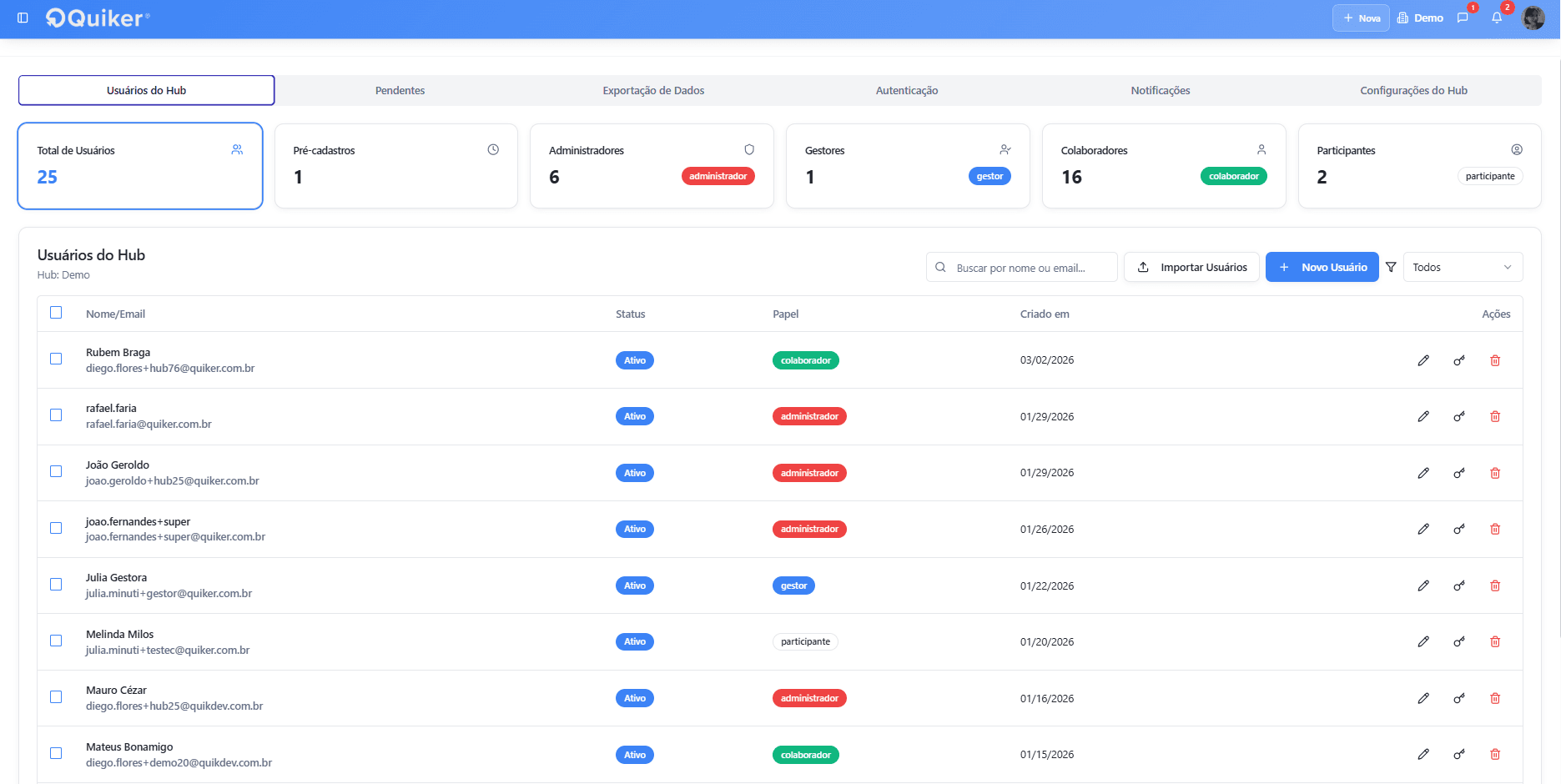
User registration and management
Pending Users
Displays the list of users who have not yet completed access to the platform.
This section allows you to validate registrations and ensure that all participants have regular access.
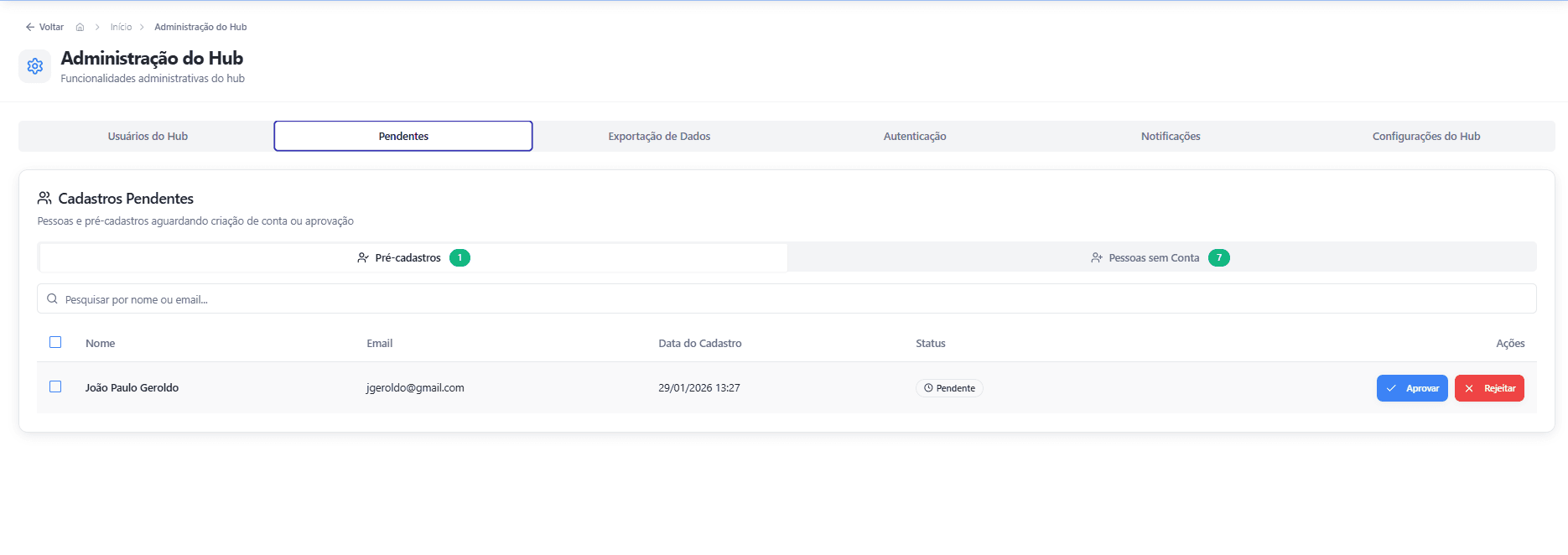
Monitoring outstanding accounts
Data Export
Enables request and monitor exports of data related to campaigns and projects.
This functionality supports external analysis, report consolidation and strategic information backup.### Access Configuration (SSO and Social Login)
Allows you to configure authentication methods such as SSO (Single Sign-On) and social login.
This area ensures integration with external identity providers and reinforces security in access control.
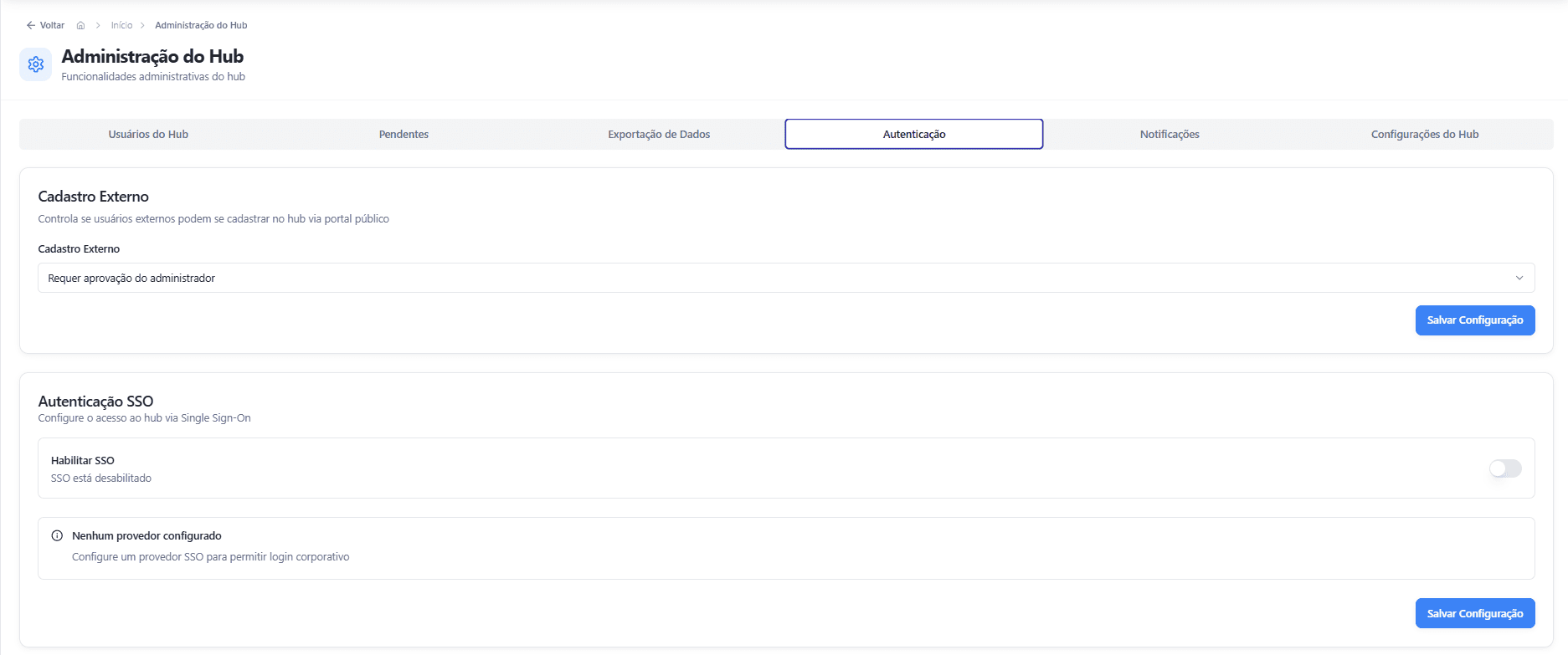
Authentication Management
Notifications (Push and Email)
The Notifications section is responsible for configuring which automatic communications will be sent to users who participate in hub activities. This is a strategic area to ensure engagement, transparency and continuous monitoring of actions carried out on the platform.
In this section, the administrator can define which notifications will be active and which of them will be sent by email (in addition to internal or push notifications, when enabled). This allows you to adapt the volume and type of communication to the dynamics of the organization, avoiding excessive messages and ensuring that only relevant alerts are triggered.
Configuration is carried out by type of event. Thus, the administrator user can select which actions within the platform will generate automatic notifications for the participants involved.
Examples of notifications that can be activated
Hub users will be able to receive notifications related to events such as:
- Submission of new ideas in a call;
- Change of stage in the funnel, informing progress or closure of the proposal;
- Receiving feedback from evaluators or managers;
- Task movement or status update in projects;
- Invitation to join committees or teams;
- Mentions or interactions in comments;
- Attribution of badges or recognition;
- Opening new campaigns or calls in the hub.
Below are some visual examples of how notifications can be viewed:
- Idea advanced in stage:
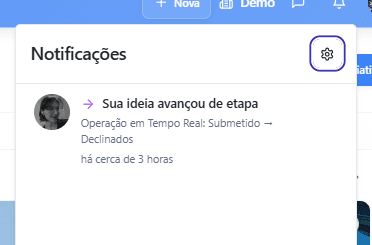
Push Notification
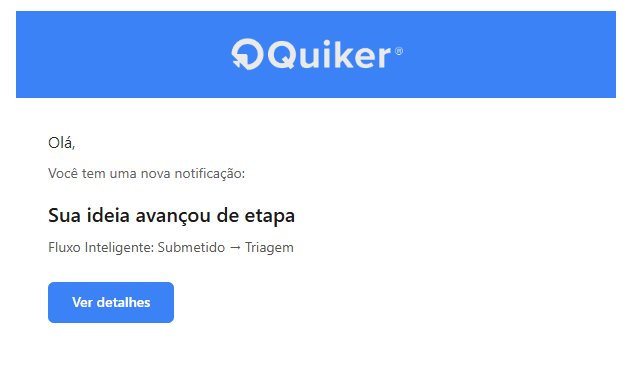
Email Notification
- Liked Idea and Comment:
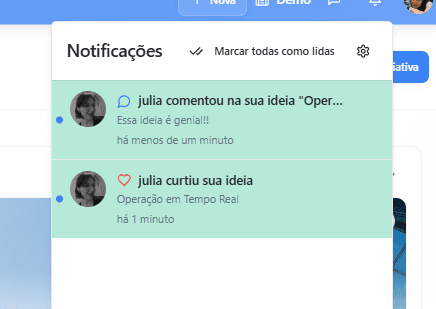
Interaction Notification
By properly configuring these notifications, the organization ensures that participants are always informed about the progress of their ideas, evaluations and projects, strengthening engagement and the culture of innovation.
In short, the Notifications section works as the hub’s automated communication mechanism, allowing each relevant interaction to generate the appropriate alert, on the correct channel and at the appropriate time.
General Hub Information
Area focused on defining the hub’s institutional configurations, such as general data, organizational identity and global parameters that impact all campaigns and platform modules.
In general, Hub Administration is the platform’s governance core, ensuring structural control, access security and centralized information management.
Support Materials
To complement the explanation of the features and configurations presented above, Quiker provides some support materials that will help you make better use of the platform and conduct your innovation journey more safely.Below you will find the available support materials:
- Collaboration Wall:
- How to apply an idea: https://app.storylane.io/share/ybkl4ilr32sg
- Exploring the Feed: https://app.storylane.io/share/5se2uyuamtnw
- Planning:
- How to register new OKRs: https://app.storylane.io/share/3h8lyqqtpjhd
- Campaign:
- How to create a campaign: https://app.storylane.io/share/us0ji1sg1l4q
- How to configure Gamification of a call: https://app.storylane.io/share/os7aio67x1mw
- Campaign funnel: https://app.storylane.io/share/3pdzko90v6on
- Projects:
- Projects Section: https://app.storylane.io/share/zvhmnxgzsfw7
- Exploring a project: https://app.storylane.io/share/dqlu5tfalqfr
- Allocation:
- Exploring Allocation: https://app.storylane.io/share/p1xi5q0zksvc
- Gamification:
- Configuring Gamification: https://app.storylane.io/share/4vbblivvh8q7